
Table of Contents
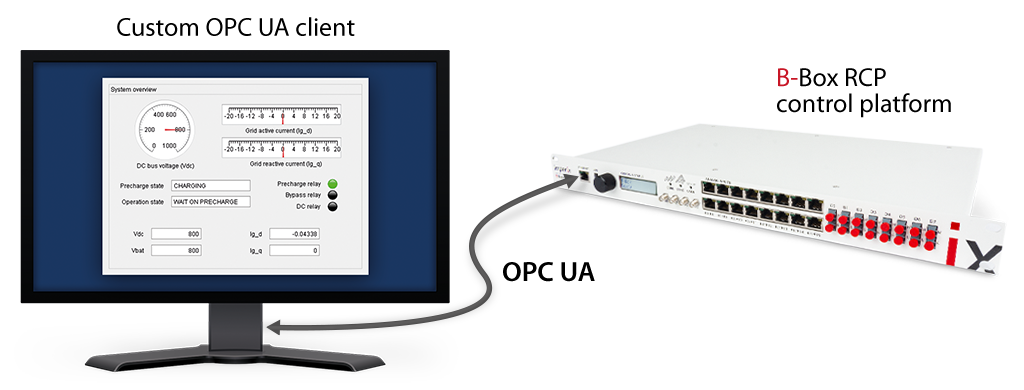
Imperix relies on the increasingly popular OPC UA industrial protocol to interact with programmable controllers remotely. To do so, imperix controllers (or the TPI8032) embed an OPC UA server to communicate with Cockpit. A key benefit of employing an open standard such as OPC UA is that is also permits data visualization and command transmission via third-party client applications.
This page provides guidance for users seeking to implement a custom OPC UA client to connect with the embedded OPC UA server in imperix controllers.
What is OPC UA?
OPC Unified Architecture (UA) is an open communication standard developed by the OPC Foundation targeting industrial automation. This Ethernet-based protocol allows clients to remotely control OPC UA compatible devices from various vendors. OPC UA is designed to be a secure industrial communication and supports signed and encrypted communication as well as user authentication.
Thanks to the openness of OPC UA, a multitude of resources and libraries are available online, such as:
- Official tools and SDK from Unified Automation: High Perf C99, ANSI C, C++, .NET C#, Java, Delphi
- MATLAB Industrial Communication Toolbox, also covered in PN178
- open62541: open-source C implementation
- NodeOPCUA: Javascript or Typescript for NodeJS
- Freeopcua Python: with a simple GUI client example made using PyQT 5
Connecting with imperix controllers over OPC UA
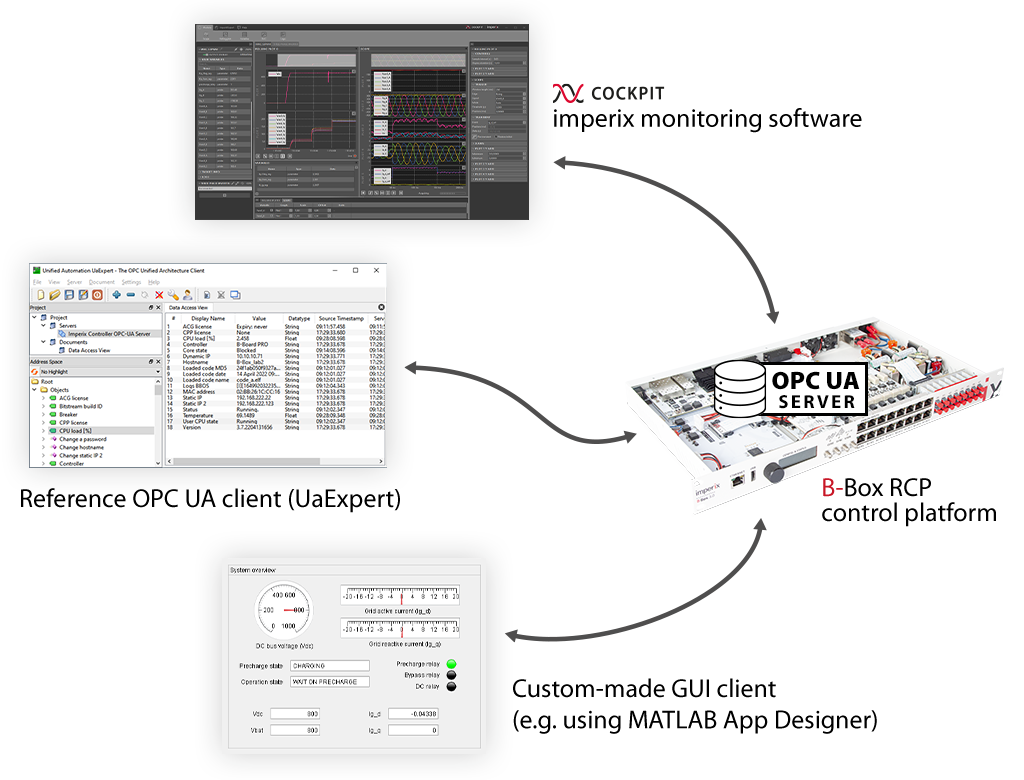
Cockpit uses OPC UA for most of the communication with the programmable controllers. More specifically:
- The controller, acting as an OPC UA server, publishes a list of accessible variables (R/W).
- The software (or PLC), acting as an OPC UA client, subscribes to updates (at a selectable refresh rate) of those variables. The client can also write new values onto variables whenever permitted.
All global variables present in a given control code/model are automatically published as accessible objects by the OPC UA server. Therefore, third-party clients may perform the same actions as Cockpit, including:
- Read and write the user variables (probe and tunable parameters) at a frequency up to 100 Hz
- Enable or disable the PWM outputs
- Get the device status (is the code running, did a fault occur, what is the CPU load, etc)
- Read the generated log messages
Connecting to the OPC UA server
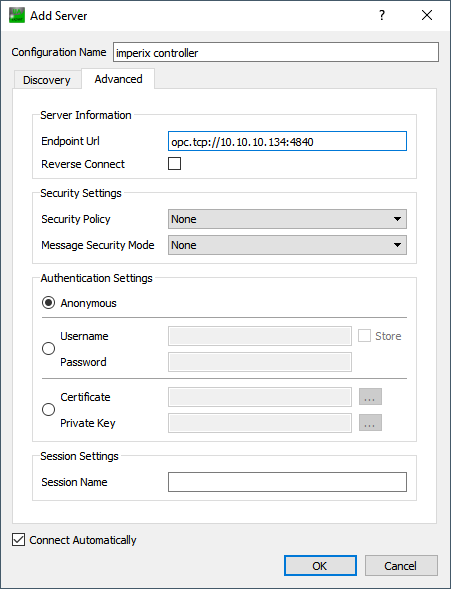
Imperix uses the default OPC UA port 4840, meaning that the OPC UA endpoint URL to connect to a controller is opc.tcp://<IP-ADDRESS>:4840
Imperix system variables
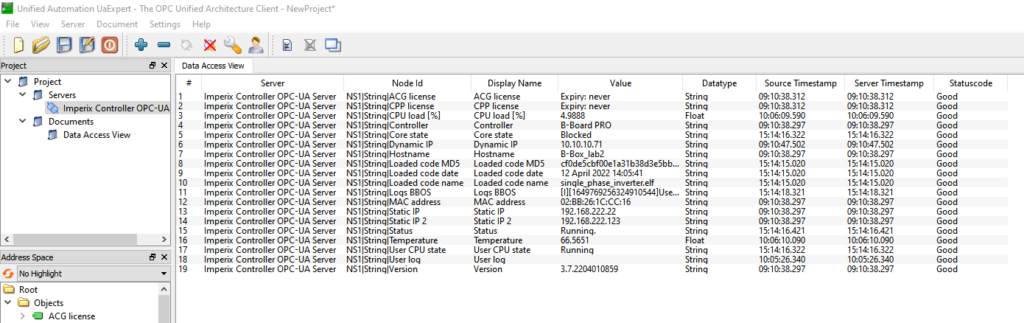
The following documents the read-only “system” OPC UA node variables that provide configuration and status information about the target. These system node variables are stored in the namespace 1 and are available at all times (contrary to user code variables described later).
| Name | Datatype | Description |
ACG license | String | The loaded ACG license status |
CPP license | String | The loaded CPP license status |
CPU load [%] | Float | User CPU load. Returns 0 when the user code is stopped |
Controller | String | Returns “B-Board” or “B-Box” |
Core state | String | “Offline”: The user code is stopped “Blocked”, “Operating” or “Fault” when the user code is running |
Dynamic IP | String | The automatically assigned IP address |
Hostname | String | The device hostname |
Loaded code MD5 | String | The MD5 hash of the loaded user code file |
Loaded code date | String | The last modification date of the loaded user code file |
Loaded code name | String | The name of the loaded user code file |
Logs BBOS | String | Returns the log messages generated by the user code system (BBOS). It uses the following format:[severity][timestamp]MessageFor instance: [I][1648114327359324364]User code started (BBOS v3.7 build 2203211046) |
MAC address | String | The device’s MAC address |
Static IP | String | The default static IP. It is always 192.168.222.22 |
Static IP 2 | String | The user-configured static IP |
Status | String | Display status similar to the B-Box screen. “Initializing…”, “Discovering…” or “Synchronizing…”: the device is in its starting phase “Ready.”: the user code can be started “Starting…”: the user code is being started “Running.”: a user code is running All other messages are error messages |
Temperature | Float | The chip temperature in degrees Celsius |
User CPU state | String | “Running” or “Offline” |
User log | String | Returns the user-created log messages generated using the LOG block. It uses the following format: [severity][timestamp]Message |
Version | String | The firmware version of the device |
Imperix methods
The subsequent methods enable user interaction with the target, specifically to initiate code execution and enable PWM outputs, or to modify system parameters (such as the hostname and IP address).
| Method name | Argument | Description | |
Change hostname | new hostname | Change the target hostname | |
Change static IP 2 | new static IP | Change the target static IP 2. The static IP 1 is always 192.168.222.22 | |
Enable outputs | N/A | Enable the PWM outputs | |
Disable outputs | N/A | Disable the PWM outputs | |
Set DAC | <variable name>, <DAC channel>, <device ID>, <gain>, <offset> | Connect a user variable to an analog output of the target, similar to the DAC module of Cockpit | |
Start code | N/A | Start the loaded user code. | |
Stop code | N/A | Stop the loaded user code. |
User-created OPC UA variables
When a user code is started, an OPC UA variable is created for each probe variable and tunable parameter present in the user model (Simulink, PLECS or C++). These variables are stored in the namespace index 2.

Going further
Making an OPC UA GUI client using MATLAB
To use MATLAB as an OPC UA client, users should consult the Industrial Communication Toolbox article. This Add-On may be combined with MATLAB App Designer to build an GUI for imperix power converters such as the one shown in the illustration on this page.
Making an OPC UA GUI client using C++
To go on the completely free-of-cost route, imperix recommends checking out the C library open62541 and using a C++ framework such as Qt or wxWidgets in order to build a GUI.
Making an OPC UA GUI client using Python
To stay on the free and open-source route, developing a client using Python is also possible thanks to Freeopcua. A GUI can be built quite easily using the popular Python package tkinter.

 By Benoît Steinmann • March 30, 2022 • PN178
 By Nicolas Cherix • January 13, 2023 • PN202