
Table of Contents
The “Write to file” function allows writing variables from the user code to the controller’s non-volatile memory during runtime. Recorded data can subsequently be downloaded on the computer using Cockpit. This mechanism is available in the Simulink and PLECS blocksets or in the related C/C++ routines.
Writing variables directly to the controller disk is typically useful for long-term logging, ranging from several seconds to several hours. This constitutes an attractive alternative to using Cockpit’s Rolling Plot module, notably as it operates without any dependence to the availability of the Ethernet link.
To perform the inverse operation, i.e. read pre-recorded data during execution, the “Read from file” function should be used instead. This is documented in SD039.
Principles of operation
The “Write to file” function automatically writes selected data to the controller’s non-volatile memory (SSD or eMMC). When working from Simulink or PLECS, this selection is made indirectly by passing the desired data to the corresponding input d.
During runtime, the write process can be started by setting the enable input to 1. Reciprocally, it can be stopped by setting this input to 0.
The a output is set to 1 when the block is active and writing data. If the enable input is set to 1, but the storage becomes full or a bandwidth constraint is met, the active output flag is set to 0.
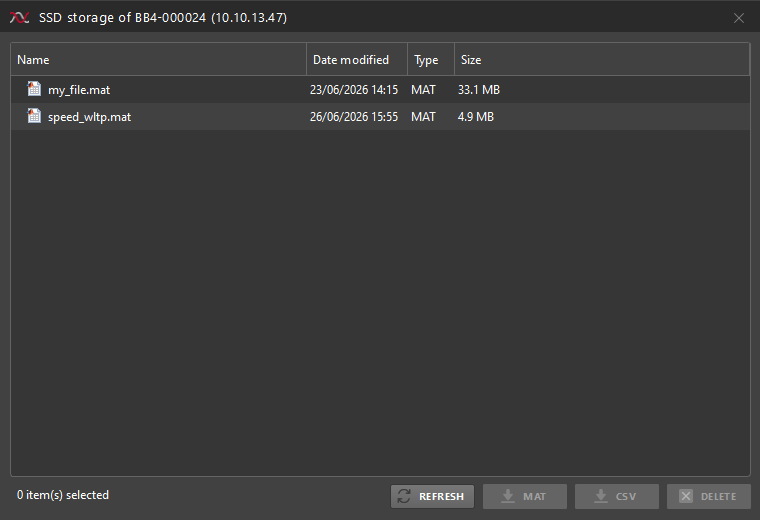
Once the writing process is done, data can be retrieved from the Target Configuration view in Cockpit (see File management section).
Finally, the “Write to file” function does not write any data during offline simulation. However, the active output flag is set to 1 when the block is enabled, as if the controller was writing to its internal storage.
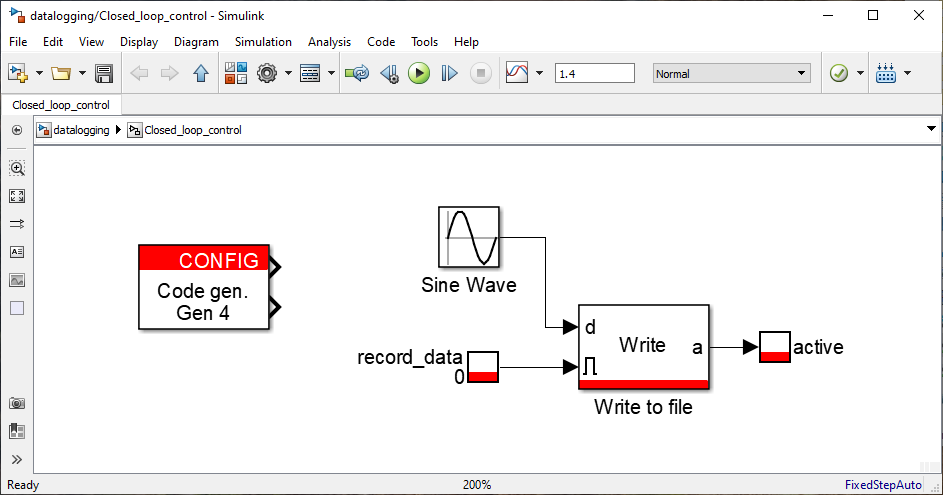
Sample time
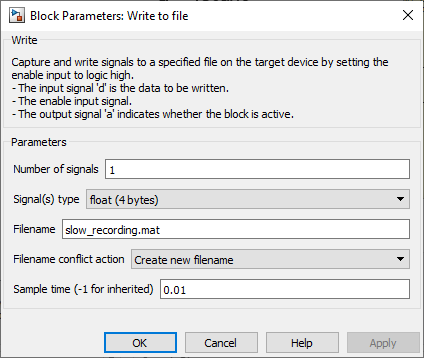
The write action takes place at a configurable rate, namely:
- Data is written to disk at the control rate: Sample time is configured as inherited (-1).
- Data is written at a different rate: A specific sample time is configured.
For more details on multirate configurations, see PN145 for Simulink or PN155 for PLECS.
Hardware resources and constraints
Once enabled, the operation of the “Write to file” is continuous and unlimited in time, unless one of the following constraints is reached:
- The required data throughput exceeds the maximum achievable write bandwidth.
- The available space is exceeded.
Storage constraint
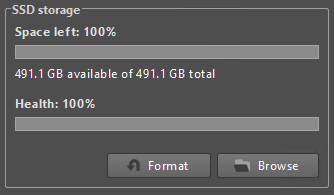
The available storage space can be seen from the Target Configuration view in Cockpit (see File management section).
For example, processing 24 signals using a float data type (4 bytes) at 10kHz represents a continuous write bandwidth of 960kB/s. At this rate, the storage capacity of a Gen. 3 device will be reached in roughly 2 hours. On the other hand, the same 24 signals logged at 1kHz would take roughly 20 hours to fill the entire memory.
Bandwidth constraint
The total required bandwidth is a function of the number of instances, the signal count, the data type size, and the execution frequency. This must be lower than the controller’s maximum achievable bandwidth. As the bandwidth is shared among other system resources (e.g., CAN, UDP), using them simultaneously may limit the achievable throughput.
$$\text{Bandwidth} = \text{Signals} \times \text{Size of Data Type (Bytes)} \times \text{Sample Rate (Hz)}$$
Consider, for example, two concurrent “Write to file” instances, each configured with 3 signals, a float data type (4 bytes), and a sample rate of 100 kHz. If both instances write data at the exact same time, each requires 1.2MB/s, resulting in a combined demand of 2.4 MB/s. This cumulative demand exceeds the maximum allowable bandwidth for Gen. 3 devices, resulting in an immediate halt of the write procedure.
The table below summarizes the storage resources available on each imperix controller:
| Param. | B-Box 4 | B-Box 3 | B-Box micro | B-Board 3 |
|---|---|---|---|---|
| Memory type | SSD | eMMC | eMMC | eMMC |
| Capacity1 | 500 GB | 8 GB | 8 GB | 8 GB |
| Max. achievable bandwidth | 20 MB/s | 1 MB/s | 1 MB/s | 1 MB/s |
File format
The “Write to file” block generates a column-oriented MAT-file in which each signal is assigned its own dedicated column. The Number of signals specifies the number of columns, and the Signal(s) type defines the data type in which the logged signals are saved.
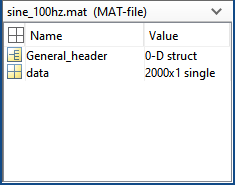
As shown in the figure above, the generated MAT-file includes a header (called General_header) containing key metadata:
- Date (UTC)
- Time resolution (sampling period)
- Firmware version
For example, the logged data can be plotted using the following MATLAB script:
Parameters
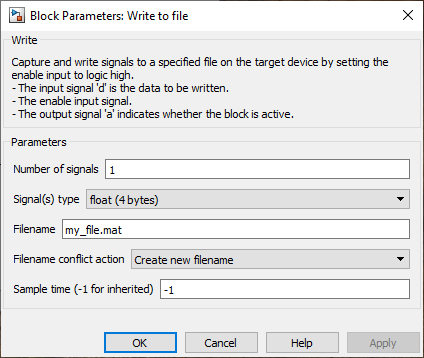
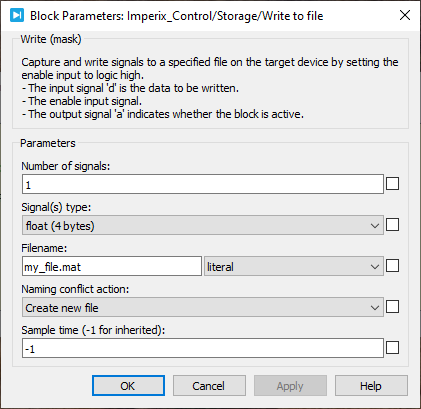
- Number of signals: sets the total number of signals to be recorded in the MAT-file.
- Signal(s) type: selects the data type of the signals to be recorded in the MAT-file (float/single, int32, uint32 and double).
- Filename: sets the desired MAT-file filename.
- Filename conflict action: specifies how to resolve filename conflicts.
- Create new filename: produces an incrementally numbered file (e.g., my_file_1.mat, my_file_2.mat).
- Overwrite existing file: overwrites the previous data (only on Gen. 4 devices).
- Sample time: sets the execution sample time of the block, which can be configured to establish a specific decimation rate for the block’s execution.
Simulink block
Signal specification
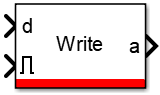
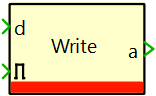
- The data input signal
dreceives a vector containing the data to be written into MAT-file. The expected vector length can be configured with the Number of signals parameter, and its data type using the Signal type parameter. - The enable input signal initiates the MAT-file writing procedure. Setting this input to 0 resets the block to its initial conditions.
- The activate output flag
ais set to 1 when writing to a file. If the output is 0 while the block is enabled, either the storage is full or a bandwidth constraint was met.
Mask
PLECS block
Signal specification
- The data input signal
dreceives a vector containing the data to be written into MAT-file. The expected vector length can be configured with the Number of signals parameter, and its data type using the Signal type parameter. - The enable input signal initiates the MAT-file writing procedure. Setting this input to 0 resets the block to its initial conditions.
- The activate output flag
ais set to 1 when writing to a file. If the output is 0 while the block is enabled, either the storage is full or a bandwidth constraint was met.
Mask
C++ functions
File management
The target’s internal storage unit is accessible via the Target Configuration view in Cockpit, providing the following file management capabilities:
- File Listing: View all files currently stored on the target.
- Exporting: Download and convert target files into CSV or MAT-file formats.
- Deletion: Permanently remove files from the target’s storage.
- Gen. 4 reserves 10 GB and Gen. 3 reserves 0.8 GB for internal system use (e.g., filesystem). ↩︎
 By Julien Orsinger • March 29, 2021 • PN152
 By Rafael Basso • September 14, 2026 • SD039