
Table of Contents
This application note shows how to use Python scripting to automate actions otherwise performed manually in Cockpit. Doing so, it also introduces a recommended workflow for working with the imperix Python library.
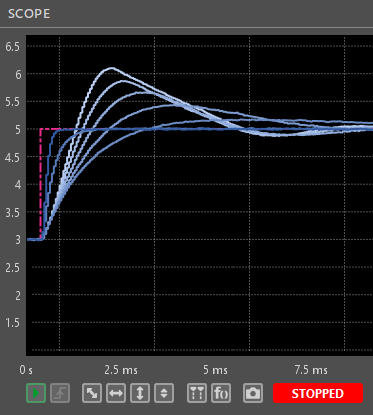
This example uses Python to automate a parameter sweep for the PI controller from TN109, used for the current control of a buck converter. The script iterates through a predefined table of (\(K_{p}\), \(K_{i}\)) pairs. For each pair, it updates the parameters, applies a current reference step, captures the transient response using the Scope module, and exports the resulting data.
While tuning a basic PI controller is a relatively straightforward task that may not require automation, this simple use case supports recommendations and guidelines on key concepts for automating tasks using the Python API.
Prerequisites
- ACG SDK or CPP SDK version 2026.3 or later (download)
- A Python scripting environment with the imperix library (see Getting started with Python)
Building the automation sequence in Python
This section divides the workflow into three parts and maps the standard manual actions in the Cockpit graphical interface to their Python API equivalents. Then, it combines these building blocks into a complete automated script.
Creating a project and launching the user code
To run the code, the model must first be built and deployed. After initiating the build (Ctrl + B in Simulink, Ctrl + Alt + B in PLECS), Cockpit opens automatically and generates a new project. Click the LINK TARGET button to view available targets. Once a target is selected, the code will execute automatically. For more detailed instructions, refer to PN138.
There are two options available to manage projects using Python:
Option 1: Connect to an existing project (recommended)
This approach connects to an active Cockpit project. First, launch the code manually by following the steps above. Then, in the Python script, retrieve the running project by referencing its name.
from imperix import Cockpit

with Cockpit() as cockpit:

    # ========================================================================
    # Retrieve an existing Cockpit project by name
    # ========================================================================
    project = cockpit.projects.get("TN109_PI_current_control")

    if project is None:
        raise SystemExit("Project not found.")

# ...Option 2: Re-create the project programmatically
Alternatively, a new Cockpit project can be created programmatically. While slightly more complex, this method ensures a clean workspace and prevents unintentional modifications to existing projects.
When using this approach, working with a standalone copy of the compiled user code (the .elf file) is recommended to avoid file conflicts. The code snippet below assumes this .elf file is located in the same directory as the Python script.
from imperix import Cockpit
from pathlib import Path

# The MAC address can be copy-pasted from Cockpit Target tab.
TARGET_MAC = "02:BB:62:75:88:2E"

# BASE_DIR is the directory containing this script.
BASE_DIR: Path = Path(__file__).resolve().parent
ELF_PATH: Path = BASE_DIR / "TN109_PI_current_control.elf"

with Cockpit() as cockpit:

    # ============================================================================
    # Verify that the targetted controller is available
    # ============================================================================

    cockpit.targets.refresh()

    target = cockpit.targets.get(TARGET_MAC)

    if target is None:
        raise SystemExit("Target not found.")

    # ========================================================================
    # Create a Cockpit project and launch the user code
    # ========================================================================

    project = cockpit.projects.create(
        ELF_PATH,
        name="PI controller sweep",
        overwrite=True,
    )

    project.link_target(TARGET_MAC)

    project.connect(auto_start_code=True, bypass_warnings=True)

# ...Configuring the Scope module transient generator
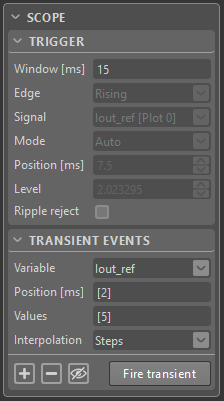
To capture the transient response to a reference current step, the Scope module is configured to acquire Iout_ref and Iout_meas and the transient generator is used to apply the current reference step to Iout_meas, as illustrated on the left.
The code snippet below shows the recommended approach for configuring a Scope module via the Python API: delete any existing Scope module in the project and create a new one. This ensures a completely clean configuration and guarantees reproducibility. Alternatively, the Scope module can be configured manually via the GUI and then retrieved using the Python script, as detailed in the Python API modules documentation.
# Applied current-reference step (in Amperes).
INITIAL_CURRENT_REF = 3.0
FINAL_CURRENT_REF = 5.0

# ...

with Cockpit() as cockpit:

    # ...

    # =========================================================================
    # Configure the scope module
    # =========================================================================

    # Iterate through modules and delete any existing Scope module
    for module in project.modules.list():
        if module.type == ModuleType.SCOPE:
            module.delete()

    # Create a new Scope module
    scope = project.modules.create(ModuleType.SCOPE)
    scope.add_variables(["Iout_ref", "Iout_meas"])
    scope.set_window(window_ms=15.0)
    scope.set_transient(
        variable="Iout_ref",
        positions_ms=[2.0],
        values=[FINAL_CURRENT_REF],
    )

# ...Automating the parameter sweep and acquisition
The following steps define the sequence for acquiring the current step response.
- Enable the PWM outputs.
- Initialize the current reference (
Iout_ref) to 3 A. - For each
KpandKipair:- Change
KpandKivalues. - Trigger “Fire transient” to apply the configured reference step and acquire the resulting data.
- (Optional) Click on the camera icon to take a snapshot of acquired data. Curves from different snapshots can be compared directly within Cockpit to evaluate results across different
KpandKivalues (see PN300). - Export the acquired plot data as a MAT file.
- Change
The Python code required to automate these steps is shown below:
# ...

# The (Kp, Ki) pairs used in the sweep
GAIN_PAIRS = [
    (1.0, 100.0),
    (2.0, 200.0),
    (3.0, 300.0),
    # To be completed...
]

# Applied current-reference step (in Amperes)
INITIAL_CURRENT_REF = 3.0
FINAL_CURRENT_REF = 5.0

# BASE_DIR is the directory containing this script
BASE_DIR: Path = Path(__file__).resolve().parent
OUTPUT_DIR: Path = BASE_DIR / "output"
OUTPUT_DIR.mkdir(exist_ok=True)

# ...

with Cockpit() as cockpit:

    # ...

    # If an operation within 'try' fails, jumps to the 'finally' block. Used to
    # safely power down the converter before the script exits due to an error.
    try:

        # =====================================================================
        # Initialization
        # =====================================================================

        print("Enabling PWM outputs.\n")

        project.enable_pwm()
        project.variables["Iout_ref"] = INITIAL_CURRENT_REF
        project.clear_all_snapshots()

        # =====================================================================
        # Parameter sweep and data acquisition
        # =====================================================================
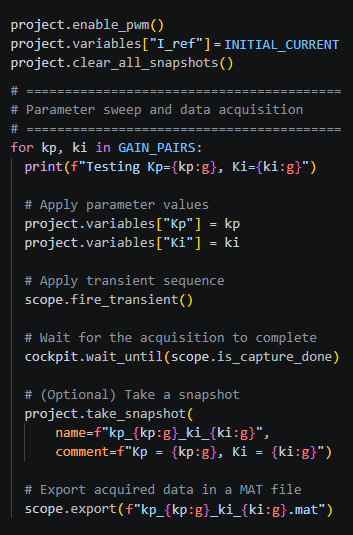
        for kp, ki in GAIN_PAIRS:
            print(f"Testing Kp={kp:g}, Ki={ki:g}")

            # Apply parameter values
            project.variables["Kp"] = kp
            project.variables["Ki"] = ki

            # Apply transient sequence and start acquisition
            scope.fire_transient()

            # Wait for the acquisition to complete
            cockpit.wait_until(scope.is_capture_done)

            # (Optional) Take a snapshot
            project.take_snapshot(
                name=f"kp_{kp:g}_ki_{ki:g}",
                comment=f"Kp = {kp:g}, Ki = {ki:g}")

            # Export acquired data in a MAT file
            scope.export(OUTPUT_DIR / f"kp_{kp:g}_ki_{ki:g}.mat")

    finally:

        # =====================================================================
        # Reset current reference to zero and disable PWM outputs
        # =====================================================================

        print(f"\nDisabling PWM outputs.\n")

        project.variables["Iout_ref"] = 0.0
project.disable_pwm()finally block is used as a safeguard to power down the converter before the script exits, even if an error occurs. The finally block will be executed regardless of whether the try block raises an error or not.The complete script
The complete script is shown below:
from pathlib import Path

from imperix import Cockpit, ModuleType

# Cockpit project name to connect to
PROJECT_NAME = "TN109_PI_current_control"

# The (Kp, Ki) pairs used in the parameter sweep
GAIN_PAIRS = [
    (3.0,  8000.0),
    (3.0,  5000.0),
    (3.0,  3000.0),
    (3.0,  1500.0),
    (3.0,  500.0),
    (10.0, 500.0),
    (20.0, 500.0),
]

# Applied current-reference step (in Amperes)
INITIAL_CURRENT_REF = 3.0
FINAL_CURRENT_REF = 5.0

# BASE_DIR is the directory containing this script
BASE_DIR: Path = Path(__file__).resolve().parent
OUTPUT_DIR: Path = BASE_DIR / "output"
OUTPUT_DIR.mkdir(exist_ok=True)

with Cockpit() as cockpit:

    # =========================================================================
    # Retrieve an existing Cockpit project by name
    # =========================================================================

    project = cockpit.projects.get(PROJECT_NAME)

    if project is None:
        raise SystemExit("Project not found.")

    # =========================================================================
    # Configure the scope module
    # =========================================================================

    # Iterate through modules and delete any existing Scope module
    for module in project.modules.list():
        if module.type == ModuleType.SCOPE:
            module.delete()

    # Create a new Scope module
    scope = project.modules.create(ModuleType.SCOPE)
    scope.add_variables(["Iout_ref", "Iout_meas"])
    scope.set_window(window_ms=15.0)
    scope.set_transient(
        variable="Iout_ref",
        positions_ms=[2.0],
        values=[FINAL_CURRENT_REF],
    )

    # If an operation within 'try' fails, jumps to the 'finally' block. Used to
    # safely power down the converter before the script exits due to an error.
    try:

        # =====================================================================
        # Initialization
        # =====================================================================

        print("Enabling PWM outputs.\n")

        project.enable_pwm()
        project.variables["Iout_ref"] = INITIAL_CURRENT_REF
        project.clear_all_snapshots()

        # =====================================================================
        # Parameter sweep and data acquisition
        # =====================================================================
        for kp, ki in GAIN_PAIRS:
            print(f"Testing Kp={kp:g}, Ki={ki:g}")

            # Apply parameter values
            project.variables["Kp"] = kp
            project.variables["Ki"] = ki

            # Apply transient sequence and start acquisition
            scope.fire_transient()

            # Wait for the acquisition to complete
            cockpit.wait_until(scope.is_capture_done)

            # (Optional) Take a snapshot
            project.take_snapshot(
                name=f"kp_{kp:g}_ki_{ki:g}",
                comment=f"Kp = {kp:g}, Ki = {ki:g}")

            # Export acquired data in a MAT file
            scope.export(OUTPUT_DIR / f"kp_{kp:g}_ki_{ki:g}.mat")

    finally:

        # =====================================================================
        # Reset current reference to zero and disable PWM outputs
        # =====================================================================

        print(f"\nDisabling PWM outputs.\n")

        project.variables["Iout_ref"] = 0.0
project.disable_pwm()Experimental results
The video below demonstrates the execution of the automated parameter sweep script using the PI controller code from TN109 on the following buck converter setup:
- One B-Box 4 controller with ACG SDK software
- 1x PEB-800-40 half-bridge module (rated for 800V 40A)
- 1x 2.2mH 32A inductor
- 1x 11.5 Ω load resistor
To replicate this example, follow these steps:
- Build a buck converter following step-by-step instructions given in PN119.
- Download and run the code from TN109.
- Copy the automated parameter sweep script provided above and save it as a Python file (e.g.,
param_sweep.py). - In the Python script, update the
PROJECT_NAMEvariable with the exact project name found in the Cockpit project settings to ensure a perfect match. - Execute the newly created
.pyscript using either Cockpit’s built-in launcher or a standalone Python environment.
Reading the exported files
The generated files can be inspected directly in MATLAB or processed further in Python. The snippet below demonstrates how to read the exported MAT files in Python using the h5py library and arrange the data into a DataFrame using the pandas
The data exported from the Scope module has the following internal structure:
kp_3_ki_500.mat
├── General_Header
│   └── ...                  (export metadata)
├── Variables_Header
│   └── ...                  (variable metadata)
├── Iout_ref                 (N rows, 2 columns)
└── Iout_meas (M rows, 2 columns)The following Python code provides an example of how to read this data:
from pathlib import Path

import h5py
import pandas as pd

# Replace this with the path to one MAT file exported by the Scope module.
OUTPUT_PATH = Path(r"C:\imperix\output\kp_3_ki_500.mat")

with h5py.File(OUTPUT_PATH, "r") as exported_file:
    # Access the measured-current data saved by the Scope module.
    iout_meas_data = exported_file["Iout_meas"]

    # Each exported variable is a 2 x N array in h5py.
    # [0, :] means "first row, all columns": the time values for all N samples.
    # [1, :] means "second row, all columns": the signal values for all N samples.
    time = iout_meas_data[0, :]
    iout_meas = iout_meas_data[1, :]

    # Build a labelled table with one row per acquired sample.
    exported_data = pd.DataFrame({
        "Time": time,
        "Iout_meas": iout_meas,
    })

# Display the first five rows of the table.
print(exported_data.head())

# ...Going further
Finding the ideal control parameters can be fully automated using libraries such as Optuna, an open-source framework that treats parameter search as a mathematical optimization problem. Rather than relying on exhaustive grid searches, Optuna accelerates discovery by utilizing intelligent sampling algorithms to learn from past trials and navigate toward high-potential regions.
 By Benoît Steinmann • September 14, 2026 • PN204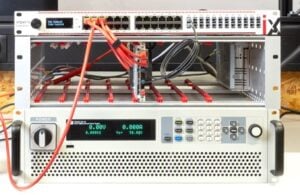
 By Jessy Ançay • May 8, 2023 • TN109
 By Mateja Ilić • February 27, 2024 • PN141