Table of Contents
Cockpit provides several options for saving signals acquired by imperix controllers. This article provides information on the common structure of MAT files generated by Cockpit and offers tips for working with them in MATLAB.
Structure of Cockpit-generated MAT files
MAT is a binary file format used by MATLAB to save workspace variables. MAT files generated by Cockpit use version 7.3, which is based on the HDF5 standard for hierarchical storage of large amounts of data.
In MAT 7.3 files, the data is stored in individually accessible chunks. This allows for partial saving by appending additional chunks to the file and partial loading by reading only the chunks that contain the desired variables. The organization of MAT 7.3 files makes exporting data from Cockpit and loading it into the MATLAB Workspace more efficient than in other file versions, except in a few cases.
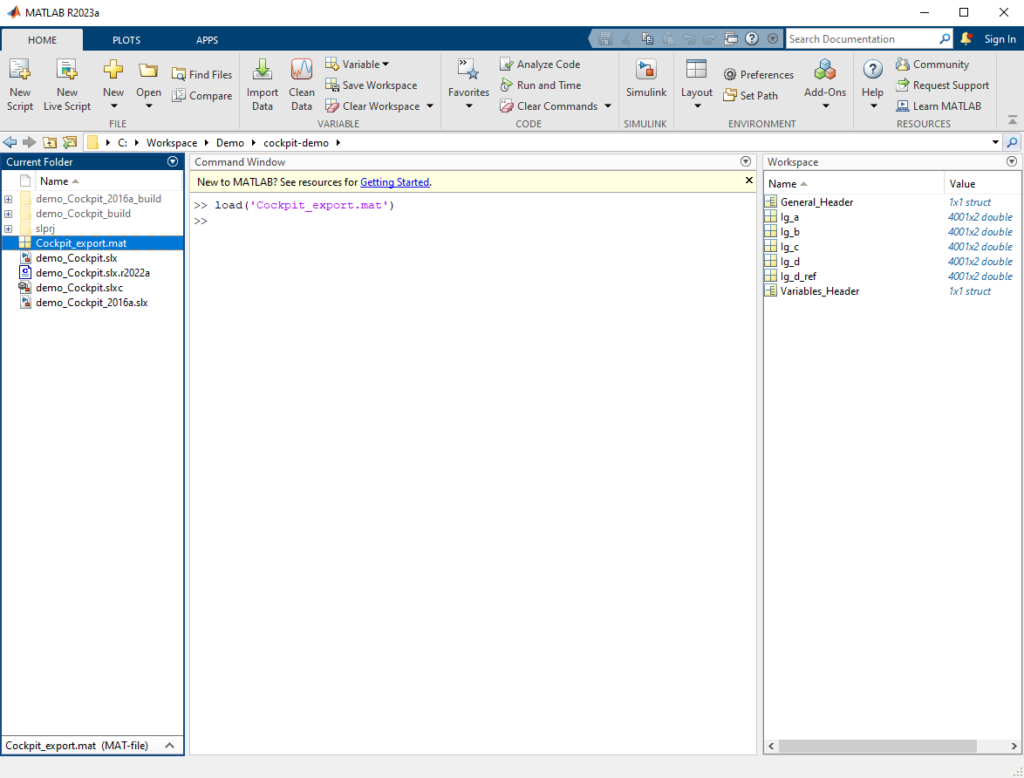
All MAT Files generated by Cockpit share a structure similar to the one shown above. Acquired signals are exported as variables with the same name they had in Cockpit. The variable data is formatted as an N x 2 matrix, where N is the number of recorded samples. The first column contains the signal x-axis (timestamps, frequencies, etc.), and the second contains the y-axis values.
The General_Header structure contains the project name, export date, target IP, and other general information. The additional information in the General_Header varies based on which tool generated the MAT file. The same goes for the Variables_Header, which contains information related to the visual representation of the exported signals, as plotted in Cockpit (Scale, Offset, Color…) and is thus only added by the Export Plot as MAT File tool.
The only exception is the MAT file generated by the Export Plot as MATLAB Figure export tool. As detailed in the section Exporting Cockpit data as MATLAB Figures below, the MAT file exported by Cockpit is post-processed using a MATLAB script and used for plotting, so it has a different structure.
Loading MAT files
The easiest way to load a MAT file is to double-click it in the MATLAB file explorer. This is equivalent to the MATLAB load function.
MAT files can also be loaded using the matfile function. This function provides additional options that may be useful when loading very large files, such as those exported from the Cockpit Rolling Plot module after a long monitoring period. Unpacking large files and loading all of the saved variables into MATLAB might take a while, overwhelming MATLAB’s available memory. Loading such files could cause MATLAB to generate Out of Memory errors, become unresponsive, or crash.
Using the matfile function allows us to load only selected variables, or even parts of variables. To work with MAT files without loading the stored data, the file should be interfaced with through the MAT-file object, created using the matfile function:
matObj = matfile('Cockpit_export.mat');Code language: Matlab (matlab)Calling the whos function on the MAT-file object will list out the names, dimensions, and memory sizes of the data contained in the file. From here, any variable can be chosen and loaded into the Workspace like so:
Ig_a = matObj.Ig_a;Code language: Matlab (matlab)Loading parts of a given variable can be done by simply indexing it. Using the end keyword should be avoided so as not to inadvertently load the whole variable. If access to the last element of a dimension is needed, the following pattern can be used:
[nrows,ncols] = size(matObj,'Ig_b');
last_timestamp = matObj.Ig_b(nrows,1);Code language: Matlab (matlab)
Saving data in MAT files
Cockpit data that was loaded and processed in MATLAB can also be saved again in another file, or even in the same file, as demonstrated in the following example:
matObj = matfile('Cockpit_export.mat');

%% Saving in a separate file
Ig_d_filt = matObj.Ig_d;
Ig_d_filt(:,2) = smoothdata(Ig_d_filt(:,2)); % example processing - smoothing filter
Ig_d_ref = matObj.Ig_d_ref;
% to create a new MAT file
save("manipulated_var", "Ig_d_filt", '-v7.3');
% to add a new variable to an existing file
save("manipulated_var", "Ig_d_ref", '-append');

%% Saving in the same file
% to enable saving to the file accessed through the MAT-file Object
matObj.Properties.Writable = true;
matObj.Ig_d_filt = Ig_d_filt; % to add a new variable though the MAT-file Object

%% Updating values in a file through partial loading and saving
variables_header = data_obj.('Variables_Header');
vars_to_update = {'Ig_a', 'Ig_b', 'Ig_c'};
for i = 1:length(vars_to_update)
  if any(strcmp(variables_header.Name, vars_to_update{i}))
    matObj.(vars_to_change{i})(:,2) = smoothdata(matObj.(vars_to_update{i})(:,2));
  end
endCode language: Matlab (matlab)Exporting Cockpit data as MATLAB Figures
While initial data exploration is typically done through the MATLAB Command Window, once the desired results are obtained, the commands can be transferred into a script that will be applied to all future exports. Using custom MATLAB scripts in this manner will keep the visualizations consistent across multiple experiments.
The Cockpit Export Plot as MATLAB Figure option opens an instance of MATLAB and runs a custom script immediately after finishing the export to a MAT file. The script:
- Parses the exported MAT file to recreate the signals in a MATLAB figure, as they were plotted in Cockpit
- Overwrites the original exported MAT file with data reshaped for plotting
The resulting MAT file contains essentially the same information, just in a slightly different layout. Every signal is represented with a structure that contains both the timeseries data and data necessary for recreating the exported plots in a MATLAB Figure:
Name: 'Ig_a'
Scale: 1
Offset: 0
Unit: '-'
Plot: 'Plot 1'
Color: '#6c4092'
Module: 'Scope'
ModuleType: 'Scope module'
Time: [4001×1 double]
Data: [4001×1 double]Code language: Matlab (matlab)cockpit/matlabScripts folder of the ACG SDK installation. They can be used as a jumping-off point for custom user scripts, or even modified directly. To ensure that a modified script is executed when exporting as “MATLAB Figure”, the name of the script directory and the main script handleCockpitExport.m should not be changed.References
[1] https://mathworks.com/help/matlab/import_export/mat-file-versions.html
[2] https://mathworks.com/help/matlab/ref/matlab.io.matfile.html
[3] https://mathworks.com/help/matlab/import_export/load-parts-of-variables-from-mat-files.html
 By Stéphane Lovejoy • April 12, 2022 • PN300
 By Julien Orsinger • March 25, 2021 • PN133