
Table of Contents
This article provides instructions for getting started with the CPP SDK, focusing on the workflow for developing control algorithms for imperix controllers in C++. Specifically targeted at first-time users, it notably addresses:
- Product presentation: What the CPP SDK is and what pieces of software it contains.
- CPP SDK programming workflow: A general overview of the workflow to give a first idea of how imperix controllers are programmed.
- Development with the C++ IDE: An introduction to the C++ IDE and to the structure and content of the user code template.
- Buck converter example: An example initializing and operating the main hardware peripherals, such as ADCs and PWM modulators.
Instructions regarding the initial software installation and setup of the CPP SDK are detailed in PN146.
Product description
The CPP SDK is a Software Development Kit (SDK) for programming imperix controllers in C++. It includes:
- The Imperix C/C++ IDE, an Eclipse-based development environment tailored to imperix controllers.
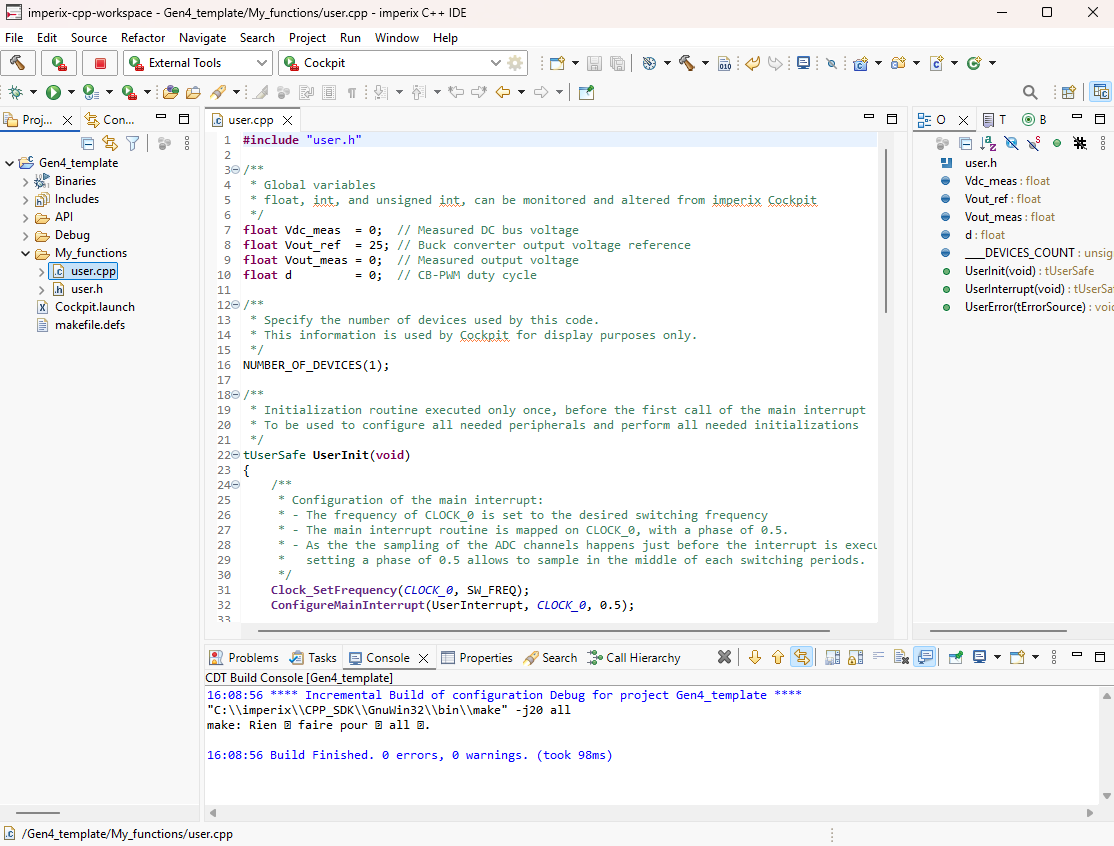
- The embedded software for the controllers (Linux-based environment on the supervisor CPU and bare-metal kernel on the user application CPU).
- The standard FPGA firmware, including all the necessary I/O peripherals.
- The Cockpit monitoring software. Cockpit enables real-time interaction with and monitoring of the physical converter by providing access to model variables and all signals measured by imperix controllers.
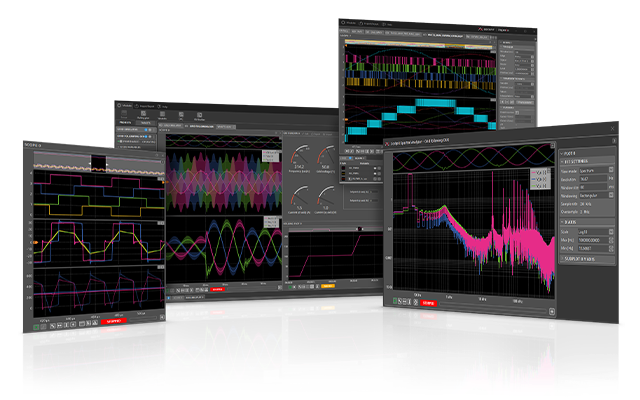
Imperix controllers can also be programmed using graphical approaches from Simulink or PLECS, leveraging automated code generation. Users interested in that approach should refer to the specific getting-started guide.
Programming workflow with the CPP SDK
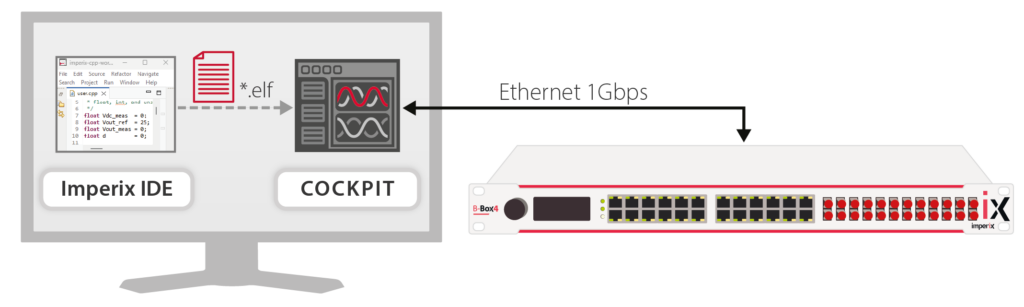
Programming imperix controllers is globally arranged into four steps:
- Code development: The control algorithm is implemented within the Imperix IDE (based on Eclipse).
- Compilation: The code is built, and an executable binary file (
.elf) is generated. - Flashing the code: This
.elffile is retrieved by Cockpit and flashed to the controller over Ethernet. - Execution: The executable is loaded and run in real time on the controller.
Navigating the IDE
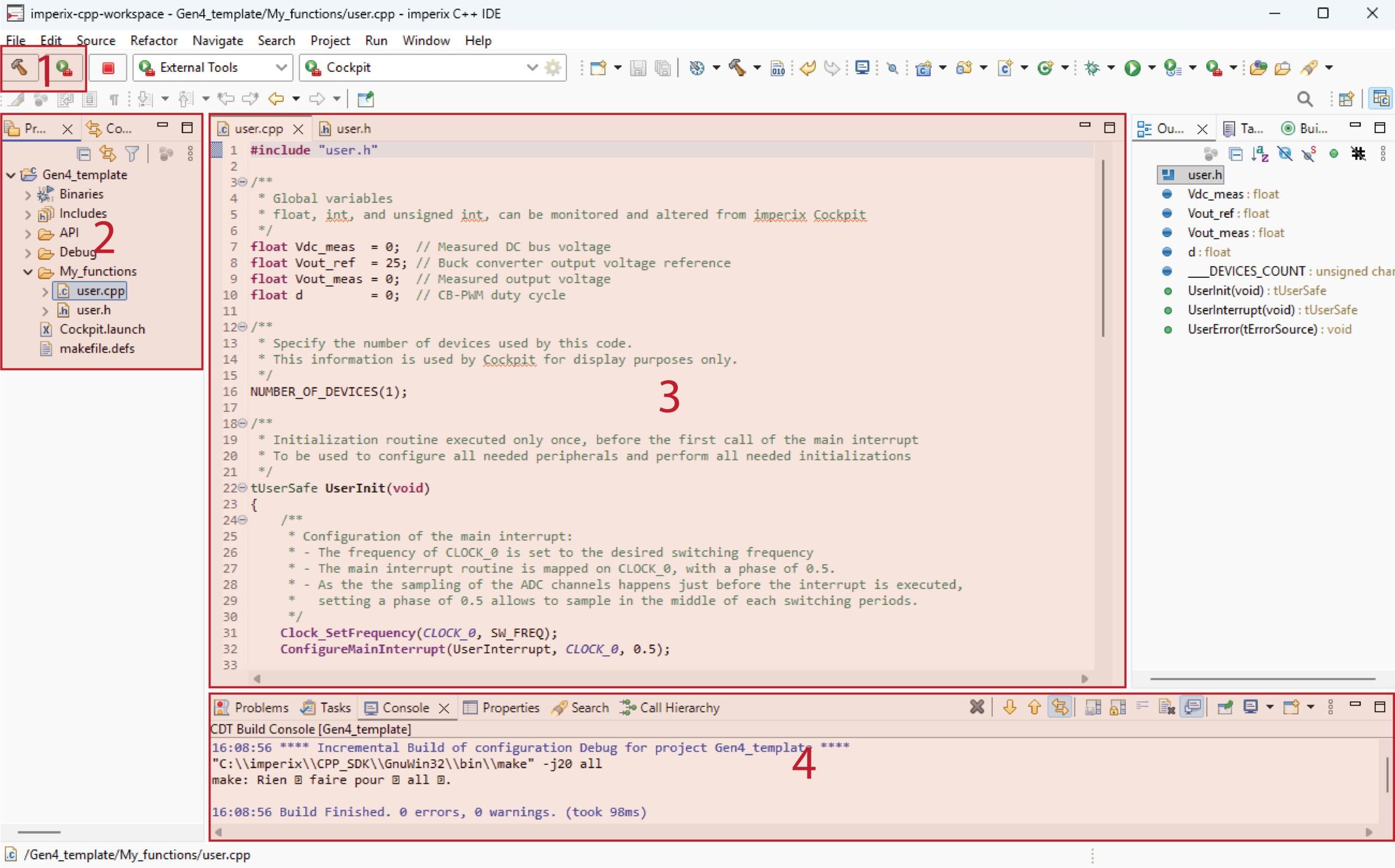
Assuming the user template has already been imported into the workspace, users should see a window as shown below. Instructions to import the user template are provided in the Installation guide for the CPP SDK.
The interface is organized into several key areas:
- Build and launch controls (top left): Dedicated buttons in the upper-left toolbar compile the code and deploy the executable to the controller.
- Project explorer (left panel): Displays the project’s directory structure and project files. The contents of these files are detailed in the upcoming sections.
- Code editor (center panel): The main workspace for editing code.
- Console (bottom panel): Displays system logs, including any compilation warnings or errors.
Structure and content of the user template
The user template should be imported into the IDE workspace by following the Installation guide for imperix CPP SDK. This template contains several folders, as shown and described below.
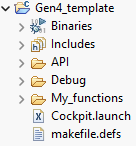
My functions
My_functions is the folder where all user files should be stored. By default, it contains only two files:
user.cpp, which serves as the code root. It contains the initialization routineUserInit()and the main interrupt service routineUserInterrupt(). Further details regarding these two functions are provided in the example below.user.h, which typically contains the prototypes of user-defined routines, as well as some useful readability-helper definitions.
Includes
The Includes folder contains the header files for the user-accessible routines associated with the hardware peripherals. By reviewing these headers, users can quickly obtain an overview of the available routines and the information needed to implement them. This folder is structured into two main subdirectories:
- The Core folder notably includes routines managing the operational state (FAULT, BLOCKED, OPERATING) of imperix controllers. More information on the related operating principles is given in PN261.
- The Driver folder contains the definitions of the peripheral driver routines. All of them are further detailed in the imperix software documentation: https://imperix.com/software-documentation/
API
The API folder provides predefined routines frequently used in power electronics. Developers are encouraged to use these standard functions, though they can be modified as needed. Key implementations provided within this directory include:
- PI controllers
- MPPT algorithms
- Basic PLLs, such as dq-frame and SOGI
- Coordinate transformations
Developing the user code
This section addresses the development of the user-specific, application-level part of the embedded software. This starts from the user.cpp file located in the My_functions folder.
Hereafter, an example is developed, meant to operate a buck converter in an open-loop configuration. The resulting user.cpp file is shown below, with explanations for each section given afterward. Further details on the application itself can be found in TN100.
Global variables
The initial segment of the user.cpp The file is dedicated to declaring global variables. All global variables (of type int, unsigned int, or float) will be available in Cockpit during run time. For the buck converter example, the following variables are instantiated, specifically for this purpose.
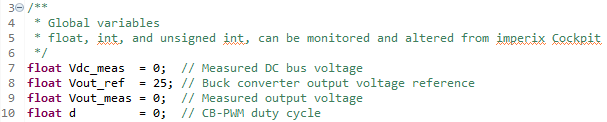
UserInit() function
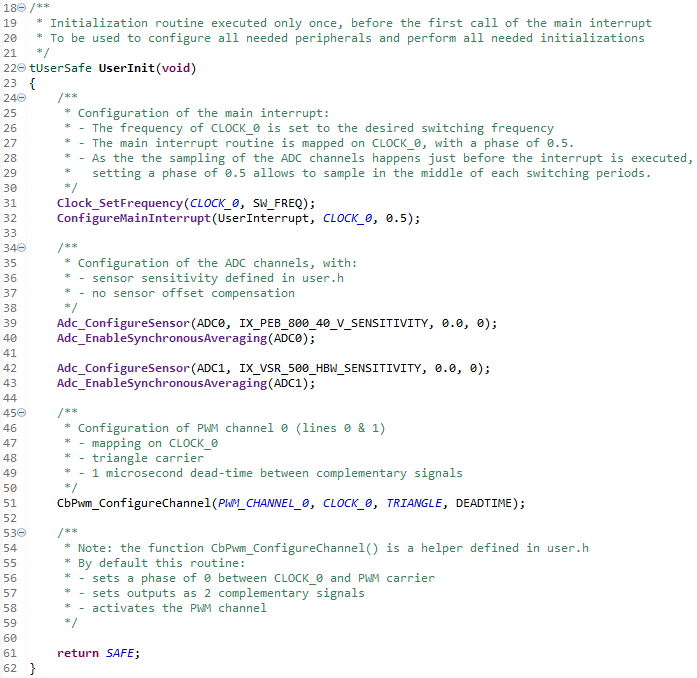
The first function is UserInit(). This initialization routine is executed only once at startup, prior to the first call of the main interrupt. It is used to configure interrupt timings and initialize all necessary hardware peripherals. More information on how imperix controllers behave at runtime is provided in PN261.
UserInit() notably defines the control period, the sampling phase, and the switching frequency. Comprehensive details regarding the configuration of these clocks can be found in PN259.
For the specific case of the user template, the UserInit() function configures the following:
- Sets the frequency of
CLOCK_0to the desired frequency (e.g. 20kHz). - Maps the main interrupt to
CLOCK_0and sets a sampling phase of 0.5 (the middle of the period) - Configures ADC channels 0 and 1 with the proper sensor sensitivity. More information about the available routines is provided in the ADC peripheral documentation.
(Warning: for B-Box 3, the configured sensitivity should consider the hardware gain that is configured on the analog front end. A numerical example is given in PN105.) - Enables synchronous averaging for both ADC channels. More information on synchronous averaging is provided in PN258.
- Initializes a carrier-based PWM peripheral on
PWM_CHANNEL_0. This modulator is mapped toCLOCK_0is based on a triangular carrier and is configured with a dead timeof 1 us. More information on the available routines is provided in the documentation for the CB-PWM peripheral.
UserInterrupt() function
The UserInterrupt() routine is executed at the CLOCK_0 frequency, as configured during UserInit(). This function encapsulates the main interrupt-based control routines required to operate the power stage. This generally includes acquiring ADC measurements, executing control strategies, and updating the PWM duty cycles. More information on this typical process is given in PN261.
In this example, the UserInterrupt() function simply computes the required duty cycle for the buck converter based on the input voltage measurement. It then updates the PWM outputs.
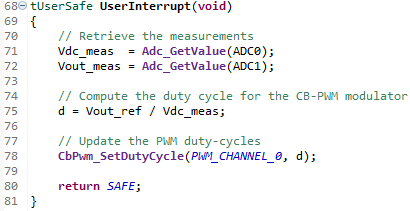
Note that both the UserInit() and UserInterrupt() functions return the value SAFE when they were executed without errors. Otherwise, the B-Box goes into fault, should an error occur during the execution, or if the value UNSAFE is returned.
Launching the user code
Once the user code has been successfully written and compiled, Cockpit automatically opens to flash it onto the controller. The subsequent steps are described in PN138 and are identical for both imperix SDKs.
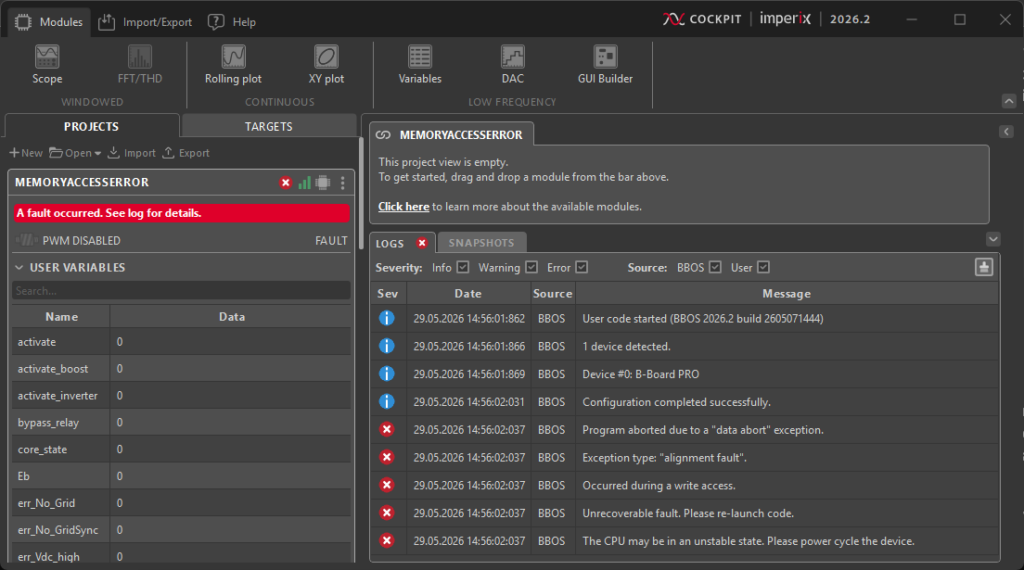
Memory access errors
Memory access violations may easily occur when writing code manually, most often due to misused pointers. When an invalid memory address is accessed, a so-called software fault is detected, immediately blocking all PWM outputs. This is one of many other protection mechanisms available on imperix controllers, as documented in PN263. In such a case, the user code must be restarted.
Further reading
It is recommended to also read the following pages:
- Efficient programming with the CPP SDK provides insights specific to power electronics applications.
- The Cockpit user guide also provides useful tips on using the monitoring software.
Additionally, controller-specific getting-started instructions can be found in the following notes:
 By Jessy Ançay • June 25, 2026 • PN149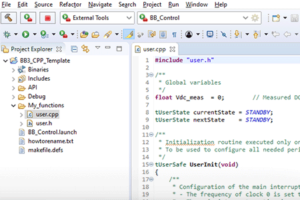
 By Benoît Steinmann • March 26, 2021 • PN146
 By Julien Orsinger • September 20, 2022 • PN138