
Table of Contents
This guide provides getting-started information for imperix’s flagship controller, the B-Box 4. To this end, readers are guided through the implementation of a “hello-world” application that also serves as a software commissioning test. This simple application produces a sine wave at a DAC output, which is then read back via an ADC input.

Document outline
This document outlines the workflow for designing, compiling, and testing a basic control example. The content is structured into two distinct parts:
- Conceptual overview: The first sections are intended to introduce the necessary background, including:
- Software installation
- Converter simulation and control code generation
- Converter operation and monitoring
- Hands-on tutorial: The guide concludes with a practical, step-by-step walkthrough of running a “hello-world” application on the B-Box 4.
Installing the software
To program its controllers, imperix provides two Software Development Kits (SDKs):
- The ACG SDK for Automated Code Generation (ACG) from Simulink or PLECS.
- The CPP SDK for development using C/C++ code.
The following sections are dedicated to the ACG SDK, which contains plug-in blocksets for MATLAB Simulink and PLECS. It requires a recent version of either software, along with their code generation tools. Detailed instructions for installing the SDK can be found in the installation guide. Essentially, the main steps can be summarized as listed below:
- Install (if not already done) the third-party tools, namely Simulink or PLECS, along with the required code-generation add-ons.
- Download and run the installer for the ACG SDK. Download links for either SDK are available at https://imperix.com/downloads/.
- For Simulink, install a C++ MEX compiler. The imperix installer takes care of the rest of the configuration.
- For PLECS, the path of the freshly installed Imperix_Controllers target support package (
C:\imperix\BB3_ACG_SDK\plecsby default) must be added to the PLECS Target support packages path in the PLECS preferences.
For users of the CPP SDK, guidance regarding installation and first steps can be found in PN146.
Developing control for the B-Box 4
Once the software is installed, programming the B-Box 4 begins with preparing a model. These steps are summarized in the following tutorial video, which features Simulink. Most of the content also applies to PLECS.
Users often choose to start from a pre-existing example from the knowledge base. It is also possible to start from scratch using the imperix template model, available in the ACG SDK’s installation folder.
More details on the first steps with the ACG SDK (for both Simulink and PLECS) are given in PN134.
Imperix control files are structured into two distinct subsystems: the Controller (encompassing the control algorithm and the simulation models for the B-Box’s own resources) and the Plant (modeling the power stage).

The Controller subsystem
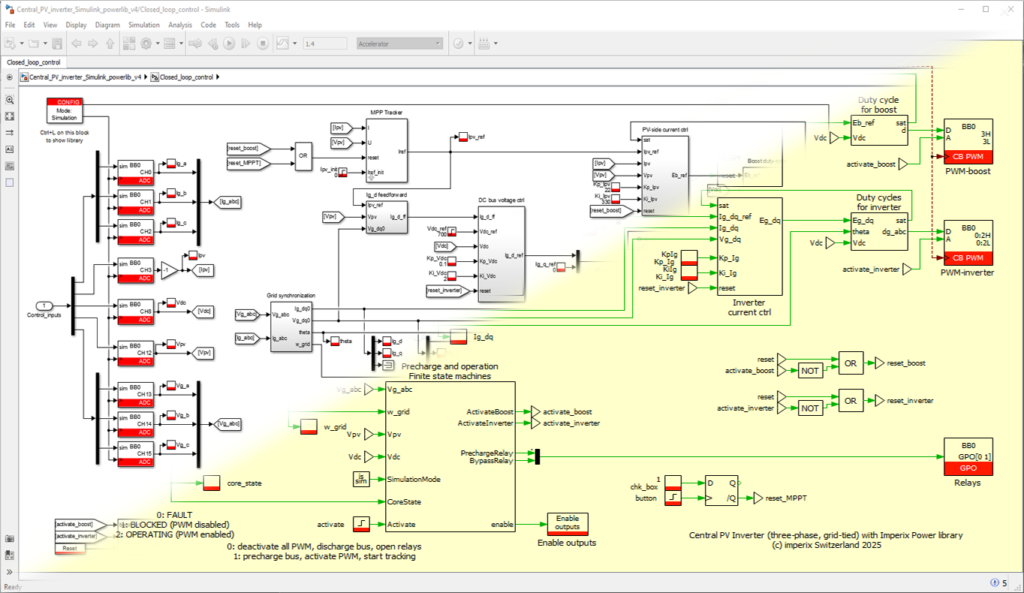
The Controller subsystem essentially contains the control algorithms, which can be developed using blocks from the imperix Control library as well as any standard Simulink/PLECS blocks. This subsystem has two purposes:
- During offline simulation, the control algorithms are precisely emulated, thanks to accurate models of the B-Box 4’s physical peripherals (internal resources and I/Os) contained within each imperix block. By running simulations before code is generated, users can precisely anticipate the control’s behavior and pre-tune the implemented algorithms.
- After code generation, C/C++ code equivalent to the Controller subsystem is automatically generated, leveraging the B-Box 4’s hardware configuration routines.
In Simulink, switching between these two model execution purposes can be done inside the CONFIG block. No equivalent mechanism is implemented in PLECS, as these distinct purposes are handled natively.
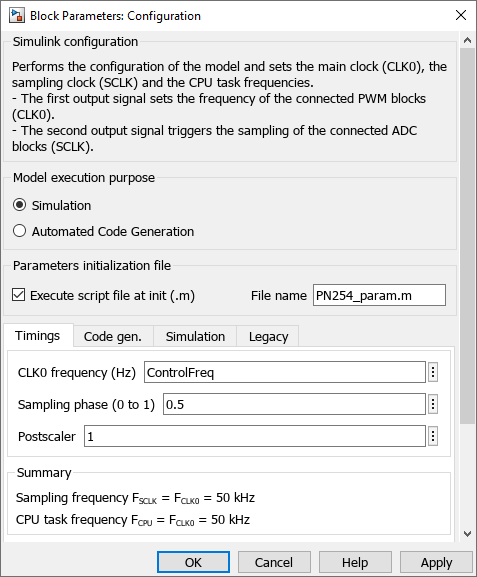
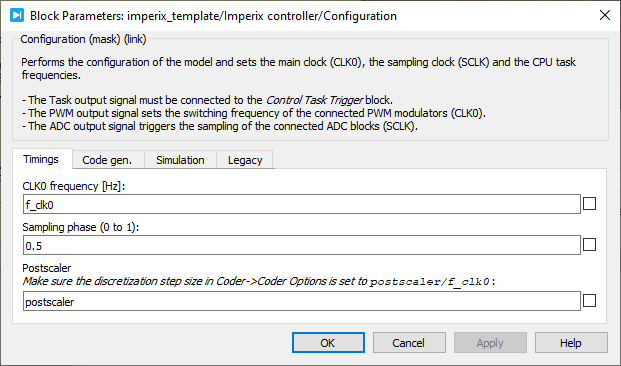
The CONFIG block is particularly important as it also sets the configuration for the main control task, including the interrupt rate and sampling configuration. Further details on the timing configuration on imperix controllers are given in PN259.
On top of that, two settings require special attention. While these can be modified at any time, applying changes will require recompilation. It is therefore recommended to address them beforehand.
- Configuration of the analog inputs: The model-dependent part of the analog input chain(s) configuration must be correctly set to ensure proper scaling of the measured data. The related details are given below.
- Selection of the PWM dead time: The dead time between complementary PWM signals must be sufficient for the connected power hardware. Since release 2026.2, the dead time can be automatically configured by selecting the correct module type in the modulator block.
The Plant subsystem
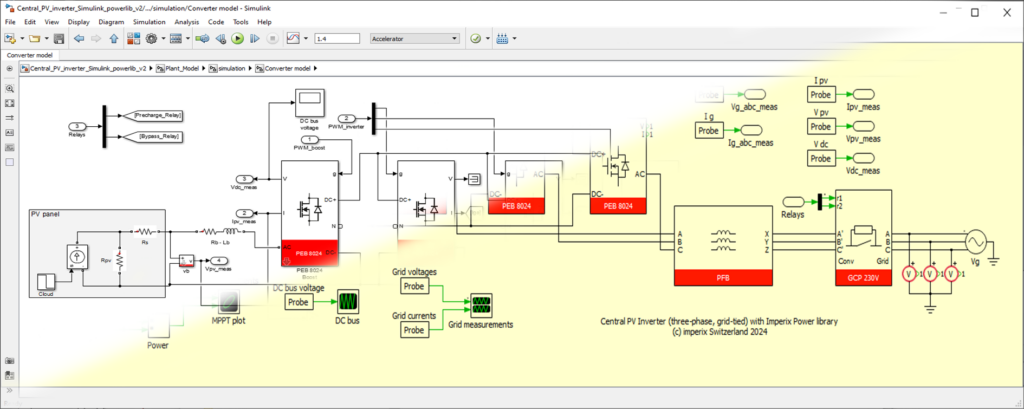
The Plant subsystem contains the simulation model of the physical system being controlled (e.g., power converters, microgrids, electrical machines).
To accurately simulate the plant alongside the control algorithms, imperix provides a Power library modeling the company’s power products, including half-bridge power modules, sensors, connection panels, and more. The Power library contains blocksets for Simscape Electrical, Specialized Power Systems (SPS), and PLECS. Documentation on the Power library is provided in PN150.
Programming the B-Box 4
Generating a runtime code
As previously detailed, the same model is used for both simulation and code generation. To build the code, press Ctrl+B in Simulink (ensure the CONFIG block is set to “Automated Code Generation”) or Ctrl+Alt+B in PLECS. The software will automatically generate code for the Controller subsystem, compile it, generate a bitfile, and transmit the latter to Cockpit for upload.
Connecting the B-Box 4 to the PC
The B-Box 4 must be connected to the PC via Ethernet. The B-Box 4 can be connected either to an existing local network or directly to a computer’s Ethernet port (as a point-to-point connection). It will then be automatically assigned a dynamic IP address. If needed, details on these steps are given in PN138.

– Licenses are usually pre-loaded on the controllers.
– Only master controllers, i.e., controllers that run the control code, need licenses, but slaves do not.
– The software can be installed on an unlimited number of computers.
More details on the licensing of imperix software are given in PN160.
Loading the code with Cockpit
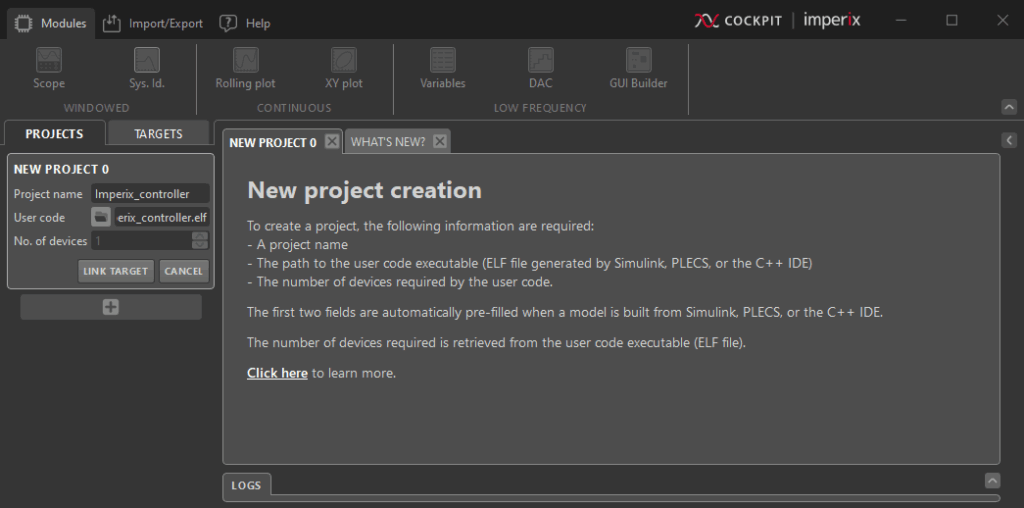
Once the code is built from Simulink or PLECS, Cockpit opens automatically and invites to create a new project. Projects associate a model (Simulink or PLECS) with a target (the controller receiving the corresponding runtime code). More details on the Projects and Targets views are provided in the Cockpit User Guide.
Configuring the B-Box 4 I/Os
An essential step before powering the system is to configure the controller’s analog inputs, which are arranged as two very distinct sections:
- The hardware configuration section corresponds to parameters stored inside the B-Box itself. This section notably includes the sensor calibration data and the hardware protection thresholds. These are resident inside the hardware and are entirely independent from the model. They can be configured either directly in Cockpit under the Target tab in the Analog I/Os section, or using the device front panel (LCD screen and rotary button)
- The model configuration section corresponds to parameters stored inside the Simulink/PLECS model. This section notably includes filter configuration and ADC measurements rescaling. These parameters are configured inside the ADC blocks and can only be modified inside Simulink or PLECS. As mentioned earlier, changes to these parameters require recompiling the code.
A comprehensive description of the complete input chain is provided in PN252. An equivalent view is provided in Cockpit by accessing the Target configuration.
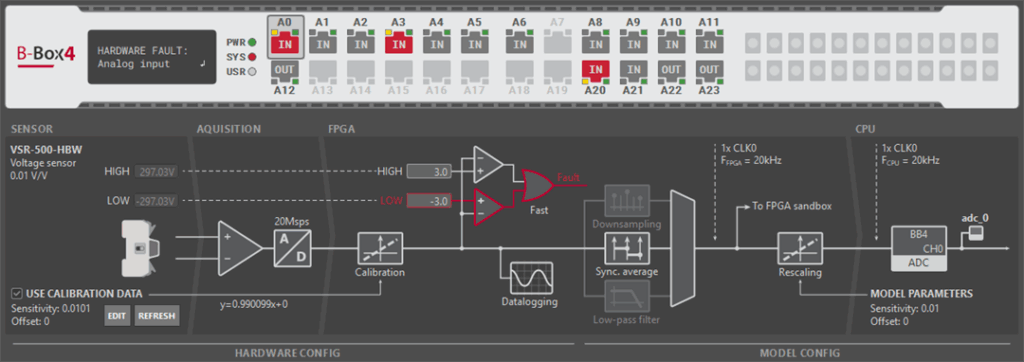
The hardware configuration includes the following parameters:
- Sensor type and parameters: With the latest imperix sensors and modules (sold in 2026 and after), the B-Box 4 automatically recognizes which sensor is connected and reads factory calibration settings (if available). More information about this is given in PN255.
- Safety limits and reaction speed: It is recommended to always configure these limits systematically for every measurement channel. Accurate configuration is vital for hardware integrity and safe prototyping. Specific information for configuring the protection thresholds is given in the Analog I/O configuration tab. Generic information and guidance regarding the use of protections is provided in PN257. Further information on how these protections are implemented is given in PN263.
Monitoring the execution using Cockpit
The Cockpit user guide explains how to monitor the operation of a power conversion system from Cockpit. In summary, users can drag variables from the sidebar list into visualization modules, such as the Scope or Rolling Plot, to enable real-time visualization. Then, transient events can be easily generated to validate the closed-loop response of the implemented control algorithms.
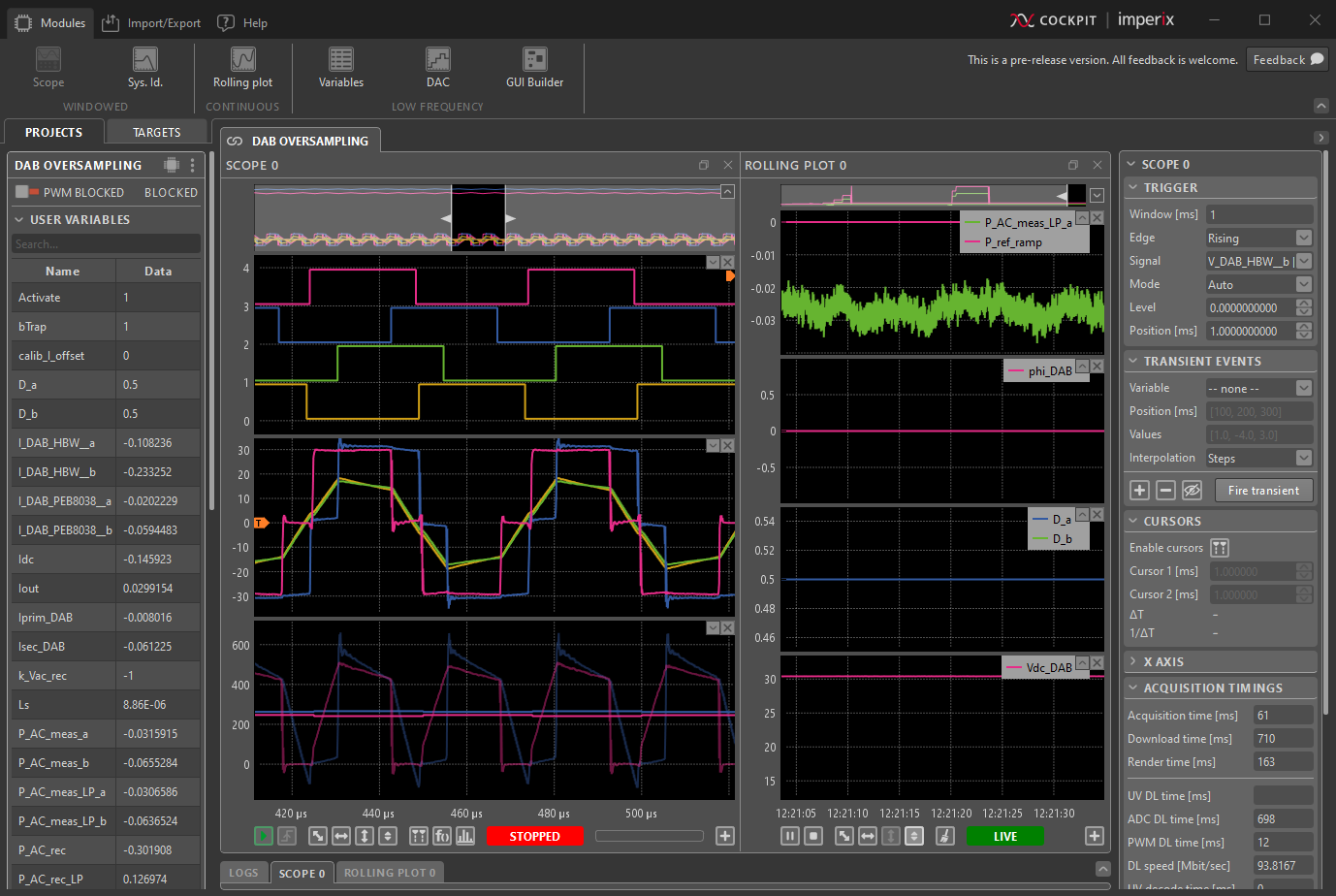
A primary feature of the B-Box 4 is its fast sampling rate of 20 Msps, coupled with the capabilities to display all this data inside Cockpit. Any probe connected to the output of an ADC block is automatically associated with the corresponding hardware channel, from which oversampled data can be acquired. Oversampled data can be visualized in most Cockpit modules, including the spectral analyzer. Additional details on the hardware architecture of the B-Box 4 are provided in PN253.
Similarly, generated PWM signals, sampled at 250 MHz, can also be displayed in Cockpit. All instantiated PWM signals are automatically made available in the Cockpit user variables list.
Hello world application
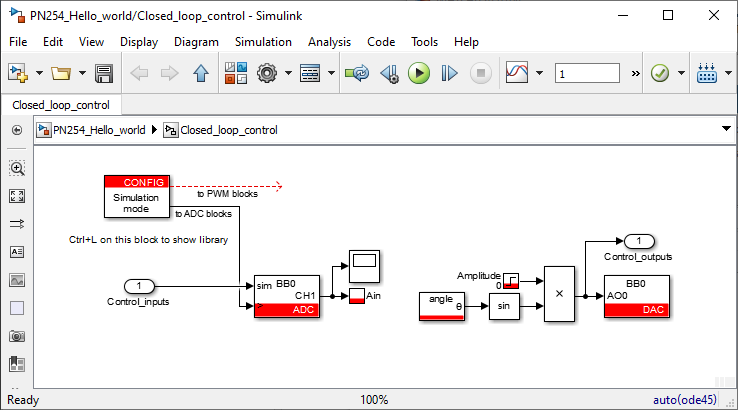
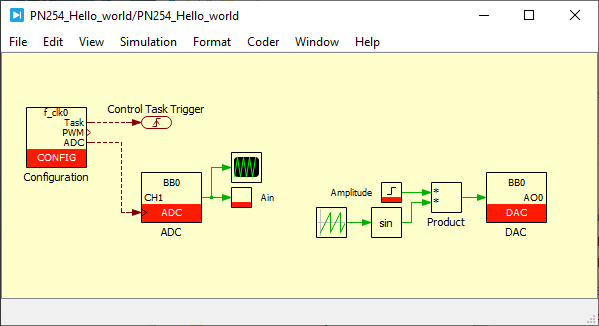
The final section of this guide provides step-by-step assistance to run a “hello-world” example. The goal is to produce a sine wave at a DAC output, which is then read back via an ADC input. The corresponding Simulink and PLECS models are given below.
This procedure can also serve as a software commissioning test, as it verifies that the software installation, license, code-generation toolchain, and communication with the target are functioning correctly. No power equipment is required for this test; only a B-Box 4 controller and an RJ45 cable are needed.
Software Setup
This section assumes that the ACG SDK is already installed on the PC. For details on installing the ACG SDK, please refer to the installation guide.
Hardware Setup
- Power on the B-Box 4.
- Connect it to the PC using the Ethernet port.
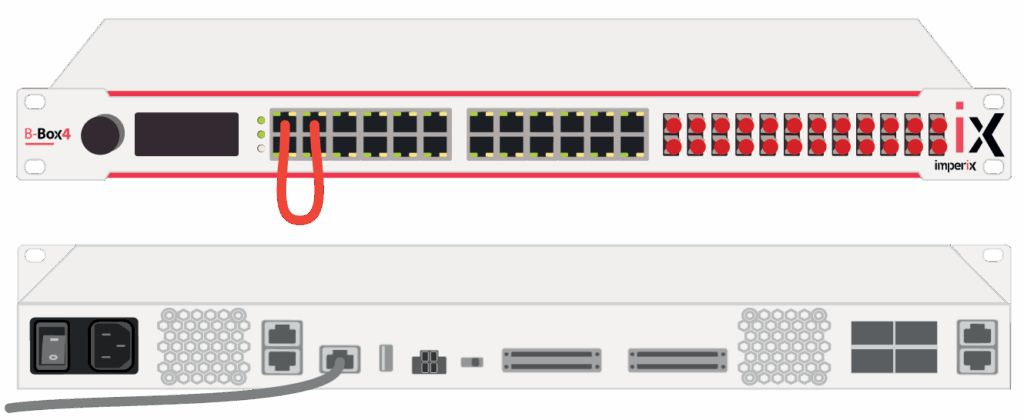
- Connect an RJ45 cable between analog channels A0 and A1.
In Simulink or PLECS
- Download and open the provided control model (choose between Simulink and PLECS based on your preferred environment). It includes the following blocks:
- CONFIG: sets the control interrupt frequency and sampling phase
- ADC: configured on analog channel 1, reads the generated DAC signal
- Probe: used to display the signal read by the ADC directly on Cockpit
- Tunable parameter: used to change the amplitude of the generated sine wave in real-time
- Standard blocks to generate a sine wave
- DAC: configured on analog channel 0, produces the sine wave
- Run the simulation by pressing Ctrl + T and observe the generated sine wave in the scope block.
- After validation in simulation, build the code by pressing Ctrl + B in Simulink (set the CONFIG block to Automated Code Generation) or Ctrl + Alt + B in PLECS. Cockpit opens automatically at the end of the process.
In Cockpit
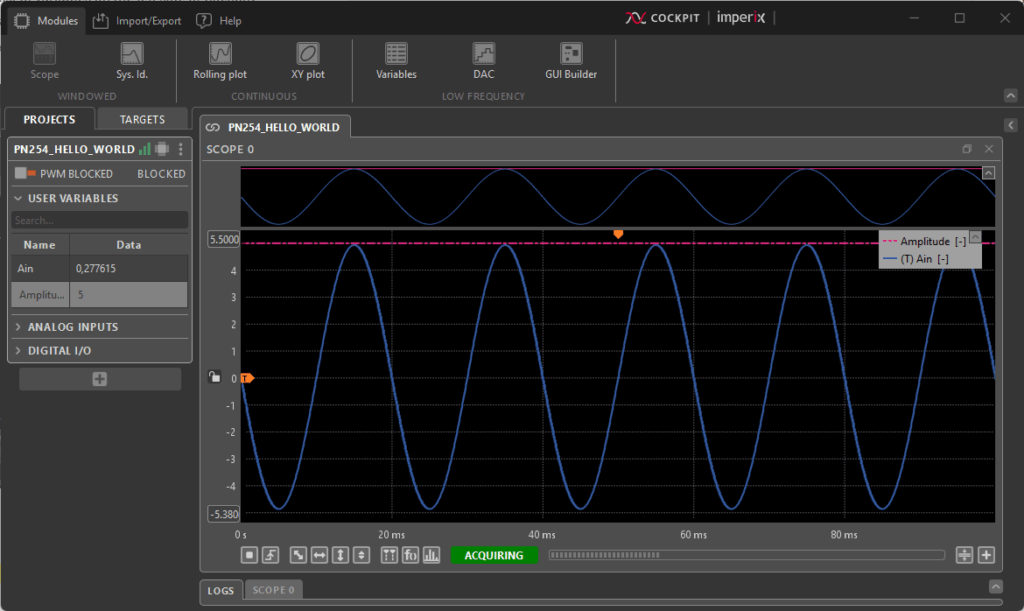
- Cockpit automatically opens the provided project (.ixproj), which contains a pre-configured Scope module.
- Link the project to the target by clicking on the LINK TARGET button on the top left panel in the Project tab.
- Cockpit automatically detects the B-Box 4 and displays it in the list of available targets. Select the correct device, then click LINK PROJECT.
- Once connection with the target is established, the user code is automatically started. In Cockpit, the scope module automatically starts acquiring.
- To verify that the setup responds correctly, change the sine wave’s amplitude by editing the Amplitude variable. The corresponding change should be visible in the scope.
To go further
As a next step, the current-controlled buck converter tutorial is recommended as an introductory example for closed-loop control applications. For the commissioning of pre-configured cabinets, a comprehensive hardware overview is given in the Power electronic bundle – quick start guide.
For users interested in learning more about the B-Box 4’s architecture and operation, additional information is provided in PN253, which covers the firmware architecture, and PN261, which focuses on its operating principles.
 By Mateja Ilić • October 10, 2025 • PN252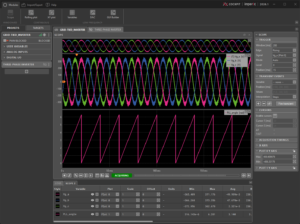
 By Stéphane Lovejoy • April 12, 2022 • PN300
 By Irati Ibanez-Hidalgo • November 29, 2021 • PN171